
MiniMax - Coding Plan MCP
Documentation Index
Fetch the complete documentation index at: https://platform.minimaxi.com/docs/llms.txt
Use this file to discover all available pages before exploring further.
Coding Plan MCP
Coding Plan MCP 提供了两个专属工具:网络搜索 和 图片理解,帮助开发者在编码过程中快速获取信息和理解图片内容。
工具说明
| 参数 | 类型 | 必需 | 说明 |
|---|---|---|---|
| query | string | ✓ | 搜索查询词 |
| 参数 | 类型 | 必需 | 说明 |
|---|---|---|---|
| prompt | string | ✓ | 对图片的提问或分析要求 |
| image_url | string | ✓ | 图片来源,支持 HTTP/HTTPS URL 或本地文件路径 |
支持格式:JPEG、PNG、GIF、WebP(最大 20MB)
前置准备
1 | powershell -ExecutionPolicy ByPass -c "irm https://astral.sh/uv/install.ps1 | iex" |
1 | which uvx |
1 | (Get-Command uvx).source |
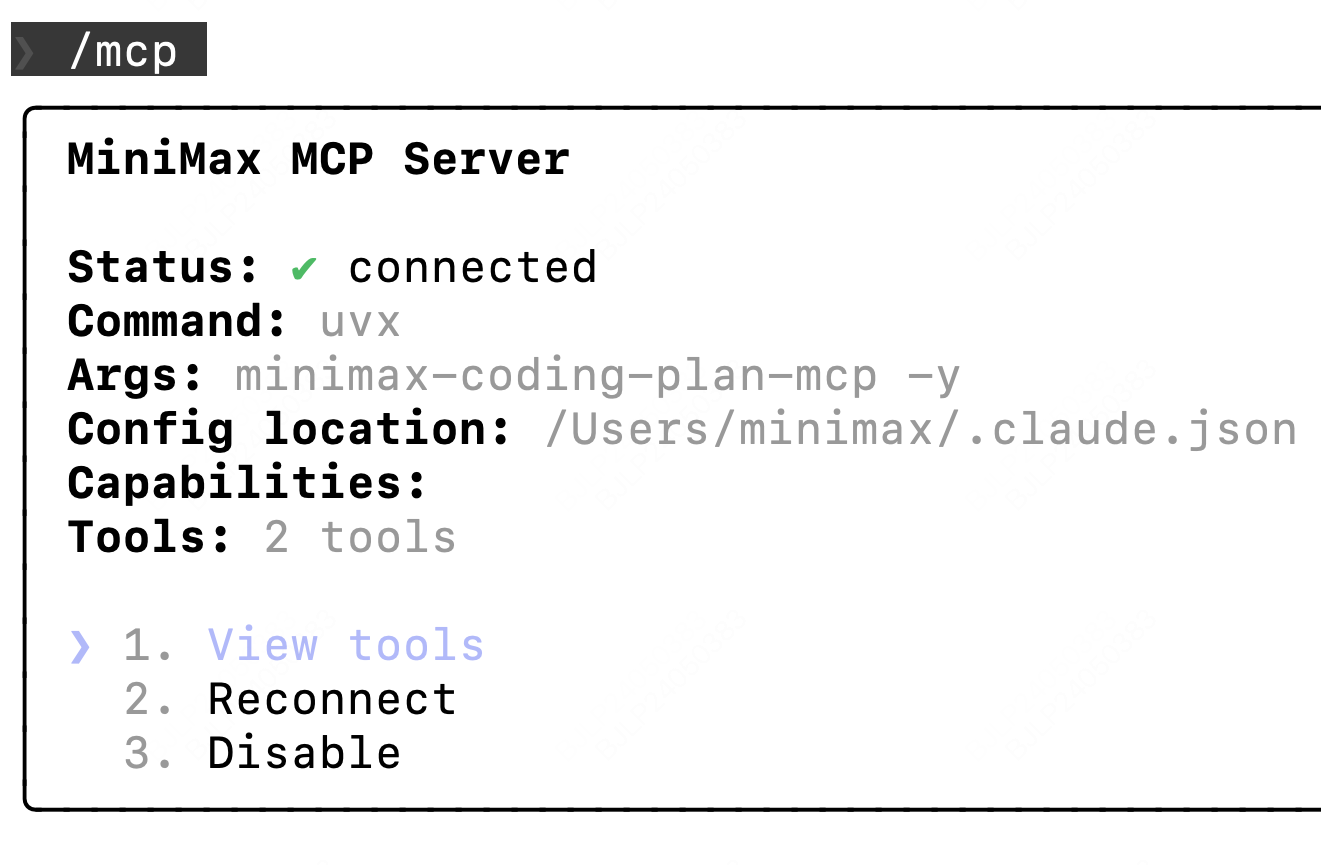
在 Claude Code 中使用
theme 1
claude mcp add -s user MiniMax --env MINIMAX_API_KEY=api_key --env MINIMAX_API_HOST=https://api.minimaxi.com -- uvx minimax-coding-plan-mcp -y
theme 1
2
3
4
5
6
7
8
9
10
11
12
{
"mcpServers": {
"MiniMax": {
"command": "uvx",
"args": ["minimax-coding-plan-mcp", "-y"],
"env": {
"MINIMAX_API_KEY": "MINIMAX_API_KEY",
"MINIMAX_API_HOST": "https://api.minimaxi.com"
}
}
}
}
在 Cursor 中使用
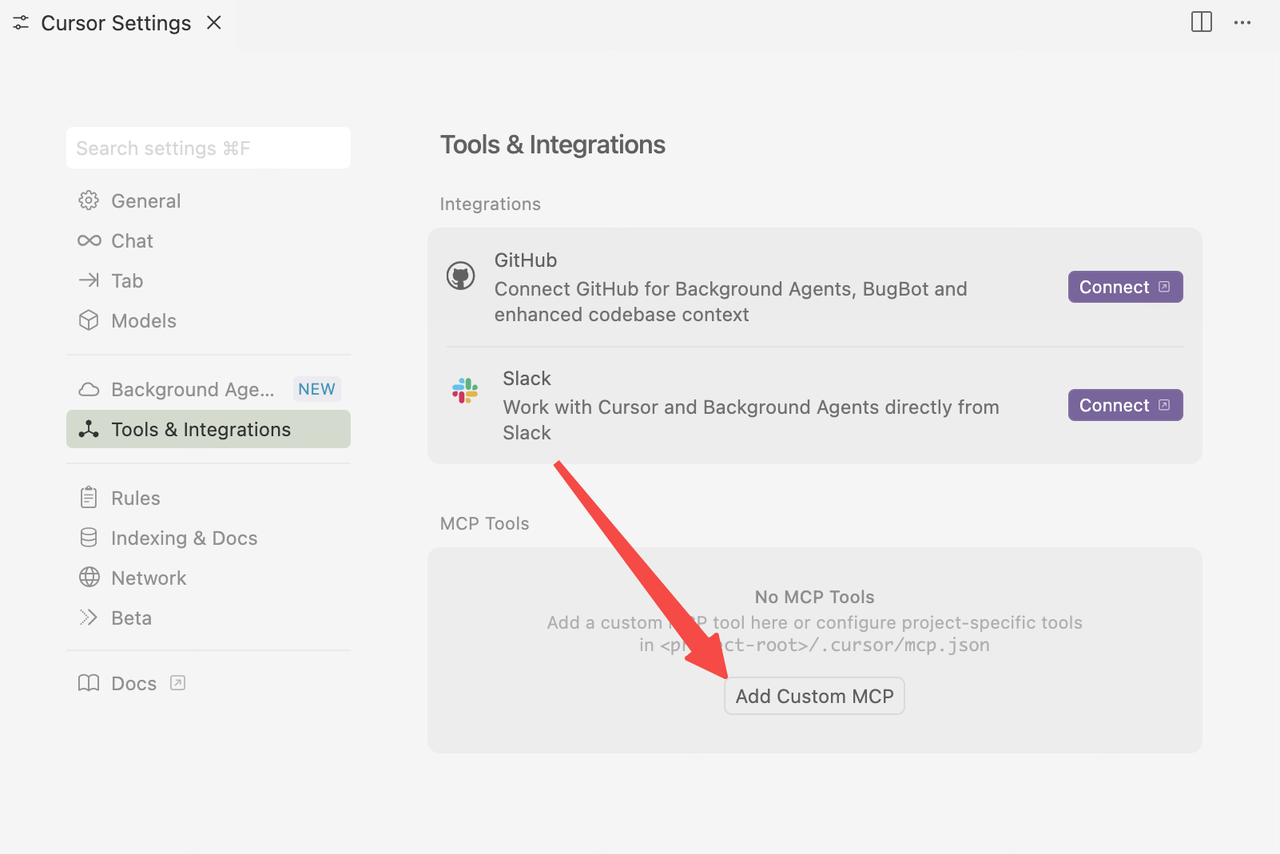
1 | { |
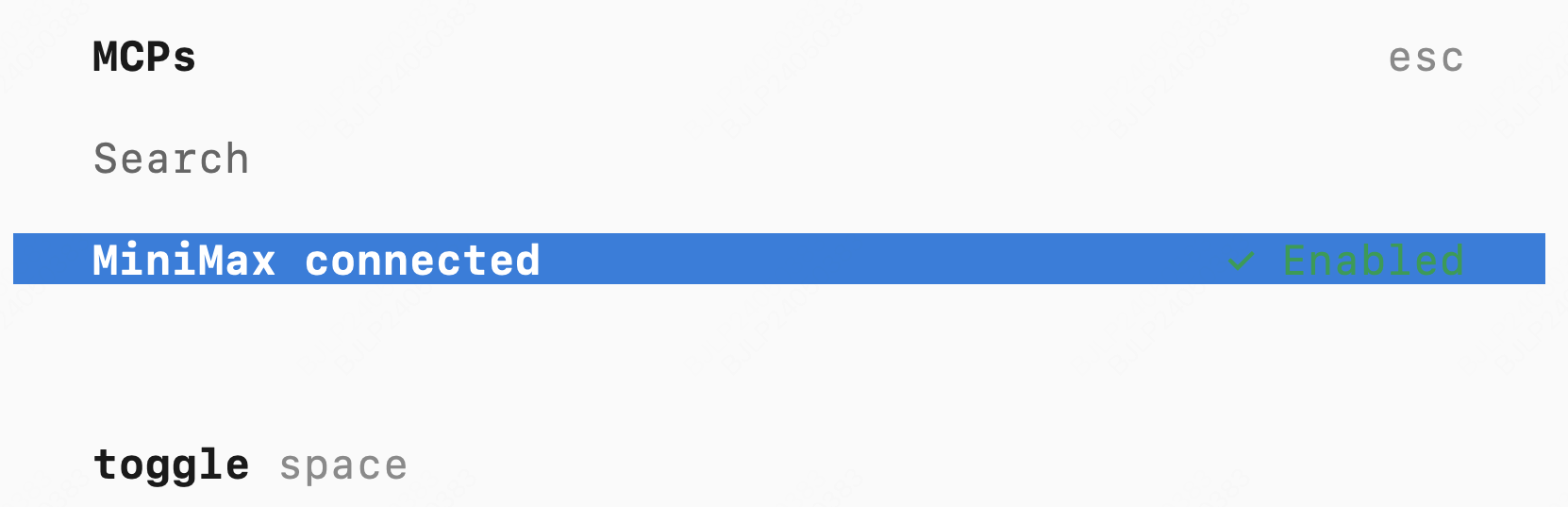
在 OpenCode 中使用
1 | { |
本博客所有文章除特别声明外,均采用 CC BY-NC-SA 4.0 许可协议。转载请注明来源 落日画斜阳!
相关推荐

2026-03-18
一行代码让网页拥有 AI 大脑:阿里 Page-Agent 实战完全指南
2026 年初,阿里巴巴开源的 Page-Agent 在 GitHub 上引发了轰动。这款仅有 10K+ Stars 的项目,凭借其独特的「页面内置 GUI 智能体」定位,迅速成为前端开发者社区的焦点。 你是否曾经面对过这样的场景?公司的 ERP 系统需要填写 30 个字段的表单,或者需要在多个页面之间来回切换复制粘贴数据,又或者希望给产品添加一个 AI 助手却不想重构后端。 Page-Agent 正是为解决这些痛点而生。它不需要 Python、不需要无头浏览器、更不需要复杂的服务器部署,只需要一行 <script> 标签,就能让你的网页拥有自然语言控制能力。 本文将带你全面掌握 Page-Agent,从快速入门到生产环境部署,从基础用法到高级配置,手把手教你将 AI 能力融入你的 Web 应用。 一、Page-Agent 是什么Page-Agent 是阿里巴巴开源的一款「运行在网页内部的 GUI 智能体」。它的核心能力是:将用户的自然语言指令转化为网页上的实际操作,比如点击按钮、填写表单、滚动页面等。 1.1 核心定位与传统浏览器自动化工具不同,Page-Agent...
2026-03-01
OpenCode 高级功能
OpenCode 高级功能中文教程 本文基于 OpenCode 官方文档整理,帮助你快速掌握 LSP、MCP、Agent Skills、ACP、自定义工具和工具管理等高级能力。最后更新时间:2026年1月23日 目录 1. LSP 服务器集成(代码智能) 2. MCP 服务器(扩展外部工具) 3. Agent 技能(SKILL.md 复用逻辑) 4. ACP 支持(在编辑器中使用 OpenCode) 5. 自定义工具(让 AI 调用你的脚本) 6. 工具管理(精细控制 AI 能做什么) 1. LSP 服务器集成(代码智能)LSP(Language Server Protocol) 是一种标准协议,用于为编辑器提供代码补全、跳转定义、错误诊断等功能。OpenCode 可以利用 LSP 获取项目上下文,让 AI 更理解你的代码。 ✅ 内置支持的语言OpenCode 自动识别以下语言并启动对应的 LSP 服务(需满足依赖条件): 语言 文件扩展名 依赖要求 TypeScript/JavaScript .ts, .js 等 项目含 typescript ...

2026-03-17
Agent-Browser:AI 时代的浏览器自动化新范式
组件官网地址:agent-browser — AI 代理的无头浏览器自动化 CLI 引言:从爬虫脚本到 AI 助手在过去的二十余年里,浏览器自动化技术经历了从 Selenium、Puppeteer 到 Playwright 的演进。这些工具各有特点,但在 AI 大语言模型蓬勃发展的今天,它们都面临着一个共同的挑战:如何让 AI 智能体高效地与浏览器交互? 传统浏览器自动化工具的设计初衷是为人类程序员服务的。它们返回复杂的 JSON 对象、完整的 DOM 树或海量的调试信息。这些数据格式对于人类开发者来说或许是友好的,但对于 tokens 资源弥足珍贵的 AI 上下文窗口而言,却是一种沉重的负担。 **Vercel Labs 推出的 **agent-browser 正是为解决这一痛点而诞生的。作为一个 100% 原生 Rust 编写的浏览器自动化 CLI 工具,它将 AI 智能体的体验置于设计的核心位置,提供紧凑的文本输出、确定性的元素引用机制,以及完整的自动化能力。 核心特性:专为 AI 设计的浏览器自动化Agent 优先的设计理念传统的浏览器自动化工具往往以「功能完备」为目标,...

2020-05-28
hello-world
123456789101112131415title: hello-worlddate: 2020-05-28 22:31:46tags: - 教程 - Hexo - 主題 - butterflycategories: Docs文檔keywords: 'hexo,butterfly,主題,doc,教程,文檔'description: Butterfly安裝文檔-快速開始cover: https://oss.012700.xyz/butterfly/2024/09/butterfly-docs-01-cover.pngabbrlink: 21cfbf15sticky: 100comments: falseseries: docs Welcome to Hexo! This is your very first post. Check documentation for more info. If you get any problems when using Hexo, you can find the answer in troubleshootin...

2026-03-01
Hexo Pro 管理面板使用指南
一、项目简介Hexo Pro 是专为 Hexo 静态博客框架打造的后台管理系统插件,为博客作者提供更强大、更便捷的内容管理体验。通过 Hexo Pro,你可以告别传统的 Markdown 文件编辑方式,通过可视化界面高效**管理博客内容。 核心功能:** 文章管理与 Front-matter 可视化编辑 页面管理 图床集成(支持图片粘贴上传) Hexo 配置文件可视化编辑 全局搜索 一键部署 多主题支持(暗黑/明亮模式) 多用户权限管理 二、安装与启动2.1 环境要求 Node.js 16+ Hexo 7.x 2.2 安装步骤1234567891011# 1. 进入你的 Hexo 博客目录cd your-hexo-blog# 2. 安装 Hexo Pro 插件npm install --save hexo-pro# 3. 启动 Hexo 服务器hexo server# 4. 访问后台管理页面open http://localhost:4000/pro/ 2.3 桌面客户端(可选)**如果需要更强大的桌面端体验,可以下载 **Hexo Pro Desktop 预...